

Before you begin
Before you begin
- Confirm that your role has permission to view work orders. The permissions set in the Zuper web app also apply to the Zuper Field Service app.
- Work orders are created and sent from the Zuper web app. In the mobile app, you can view work orders and mark them as completed. To create or edit a work order, change other statuses, or add, edit, or delete items, use the web app.
- You can mark a work order as completed when its status is Subcontractor Accepted. If Automatically Send WO to Subcontractor after Approval? is turned off in your Purchasing settings, you can also mark it as completed when its status is Sent to Subcontractor.
Open a work order
Work orders are associated with jobs and quotes. You can access them from either record.- Open the Zuper Field Service app.
- Open the job or quote that the work order is linked to.
- Scroll to the Work Orders section:
- Job: On the Overview tab.
- Quote: On the Associations tab.
The section shows the number of linked work orders and the most recent ones.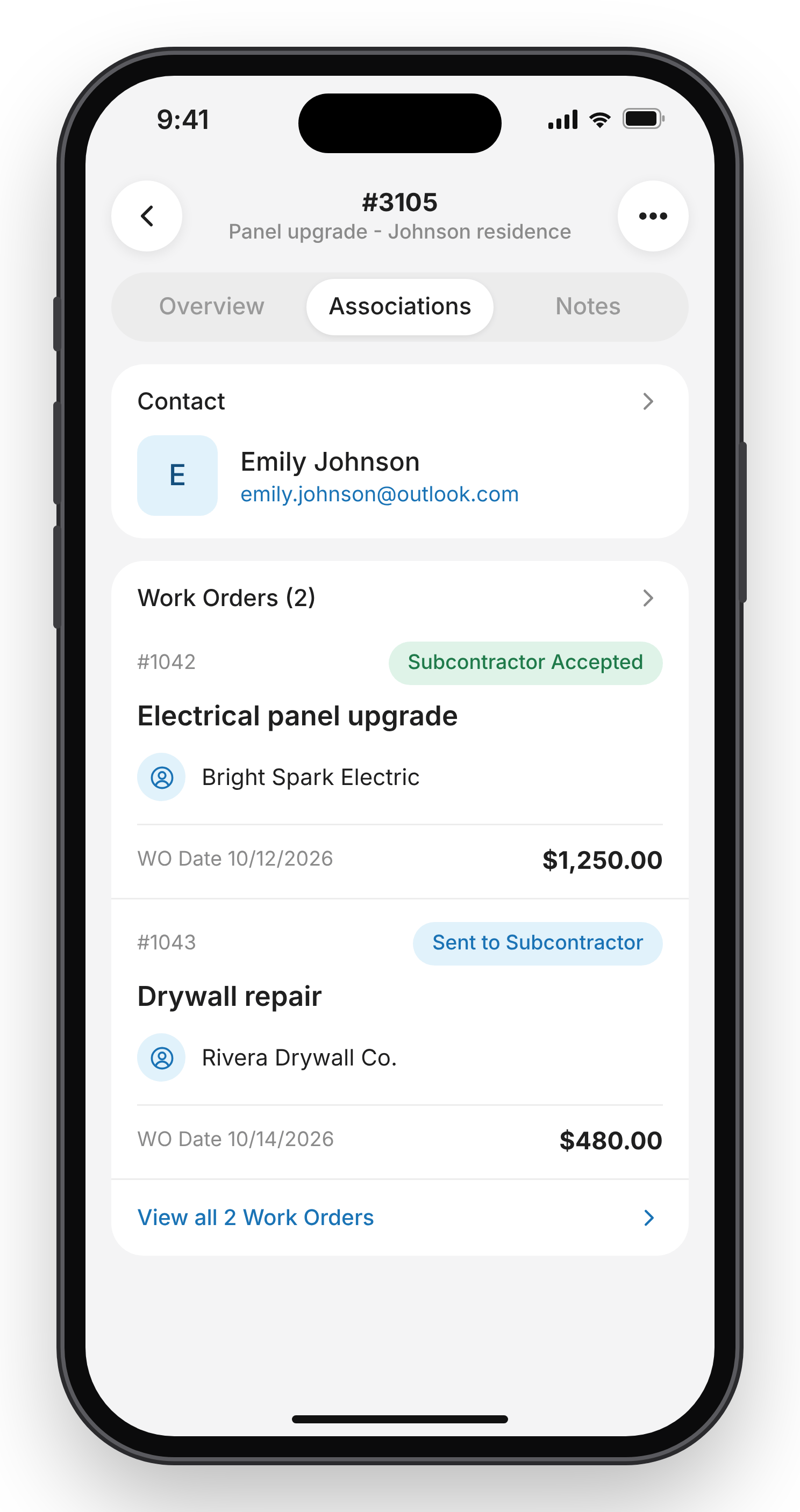
- Do one of the following:
- Tap a work order to open it.
- Tap View all Work Orders to see every linked work order. On the Work Orders screen, use Search Work Orders to find a specific order, then tap it to open it.
Review a work order
Review the work order to confirm what the subcontractor agreed to do, check the order details, and contact the subcontractor if you need clarification.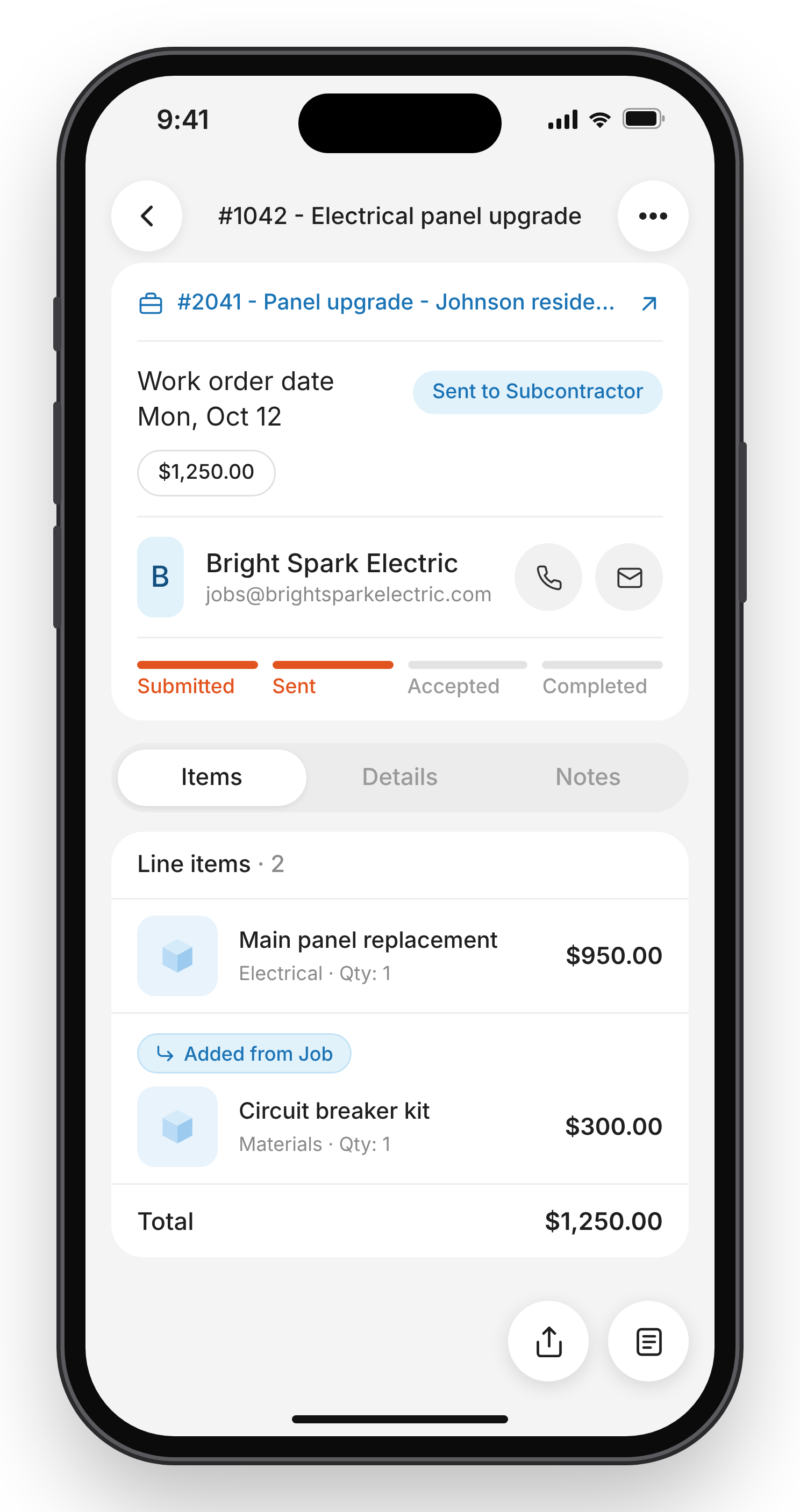
Check where the work order stands
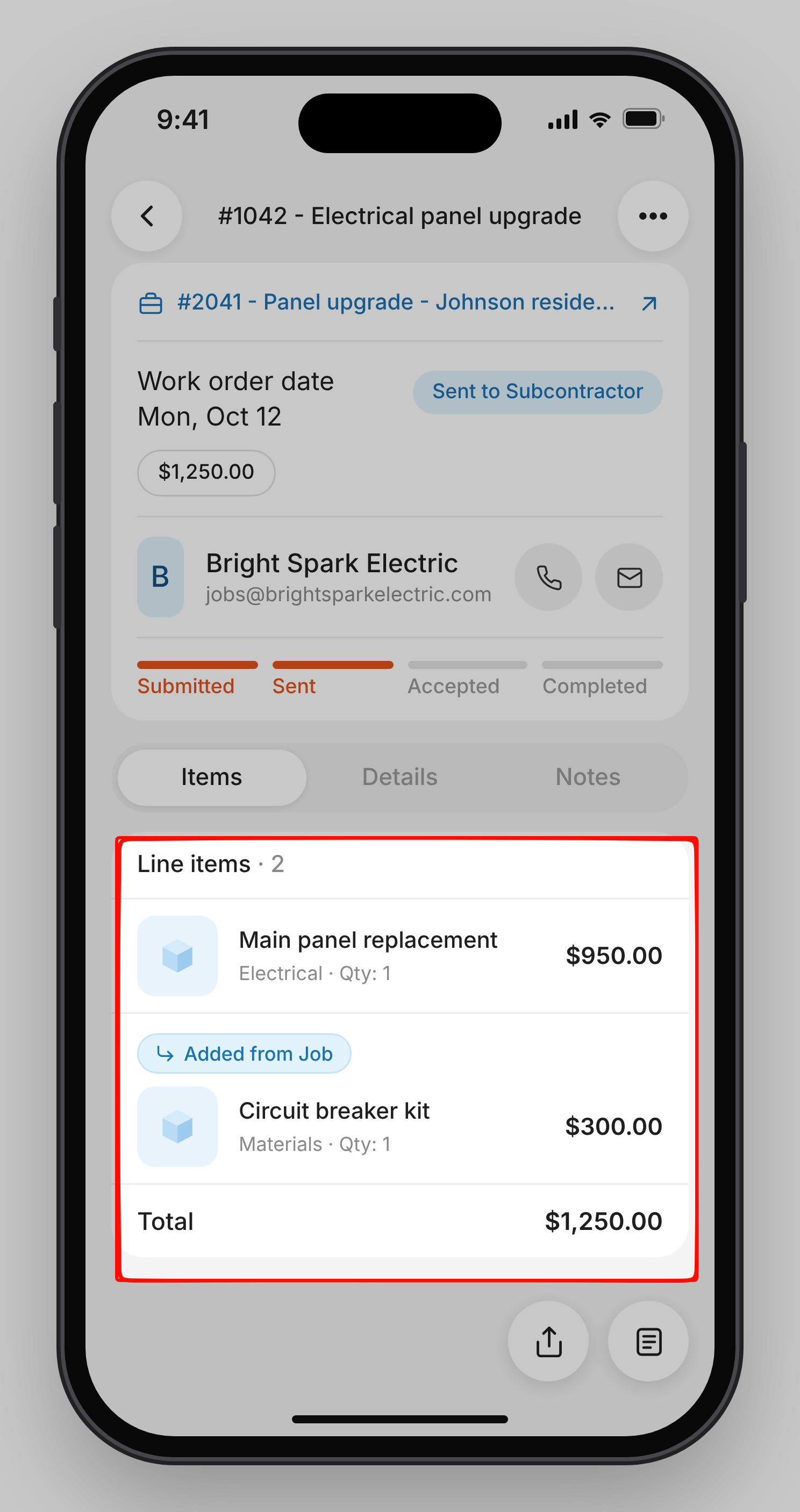
The progress tracker at the top shows the work order’s progress. The status label next to the work order date shows the current status.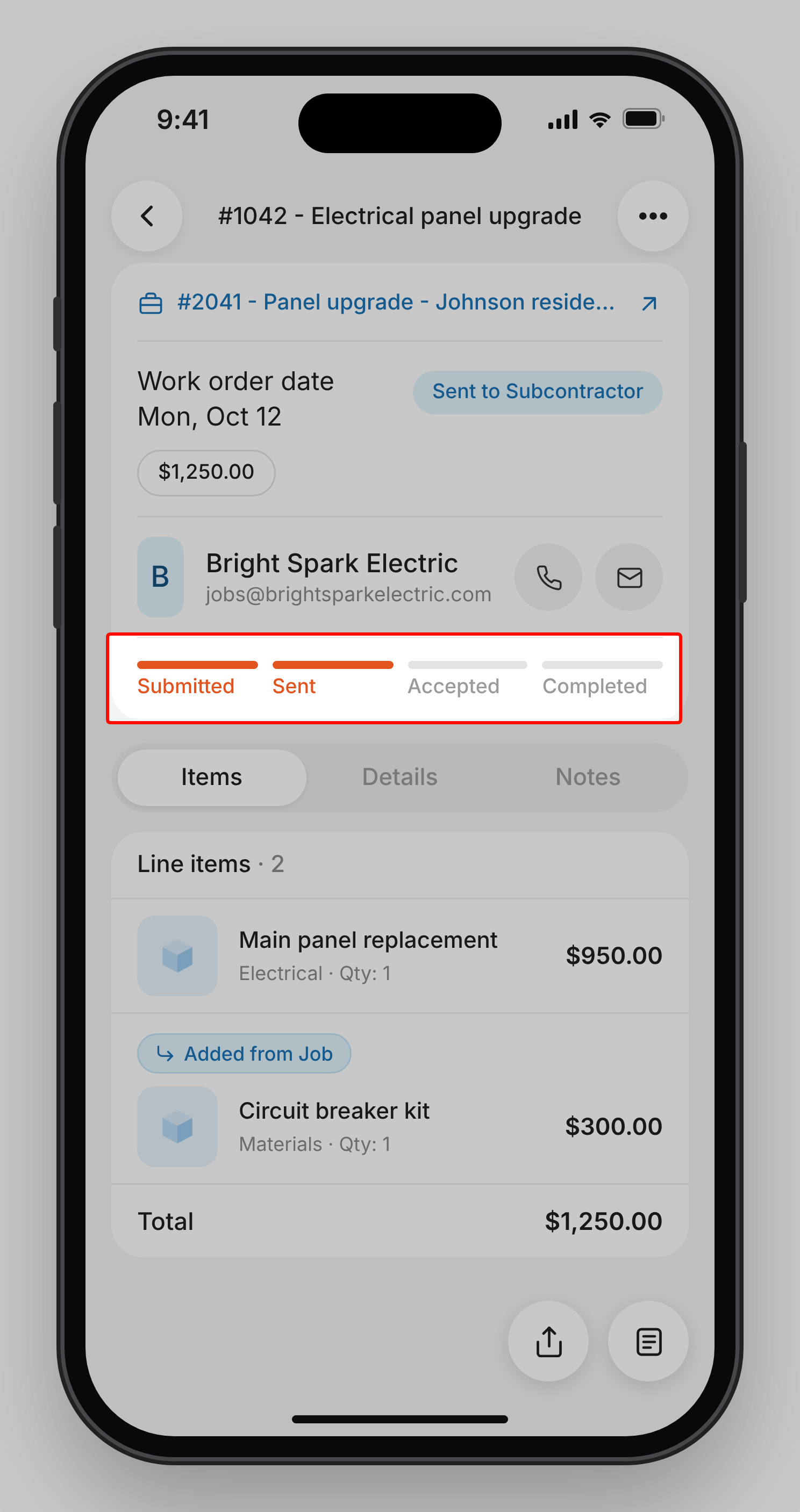
Contact the subcontractor
If you need to clarify any details, tap Call or Email next to the subcontractor’s name to contact them.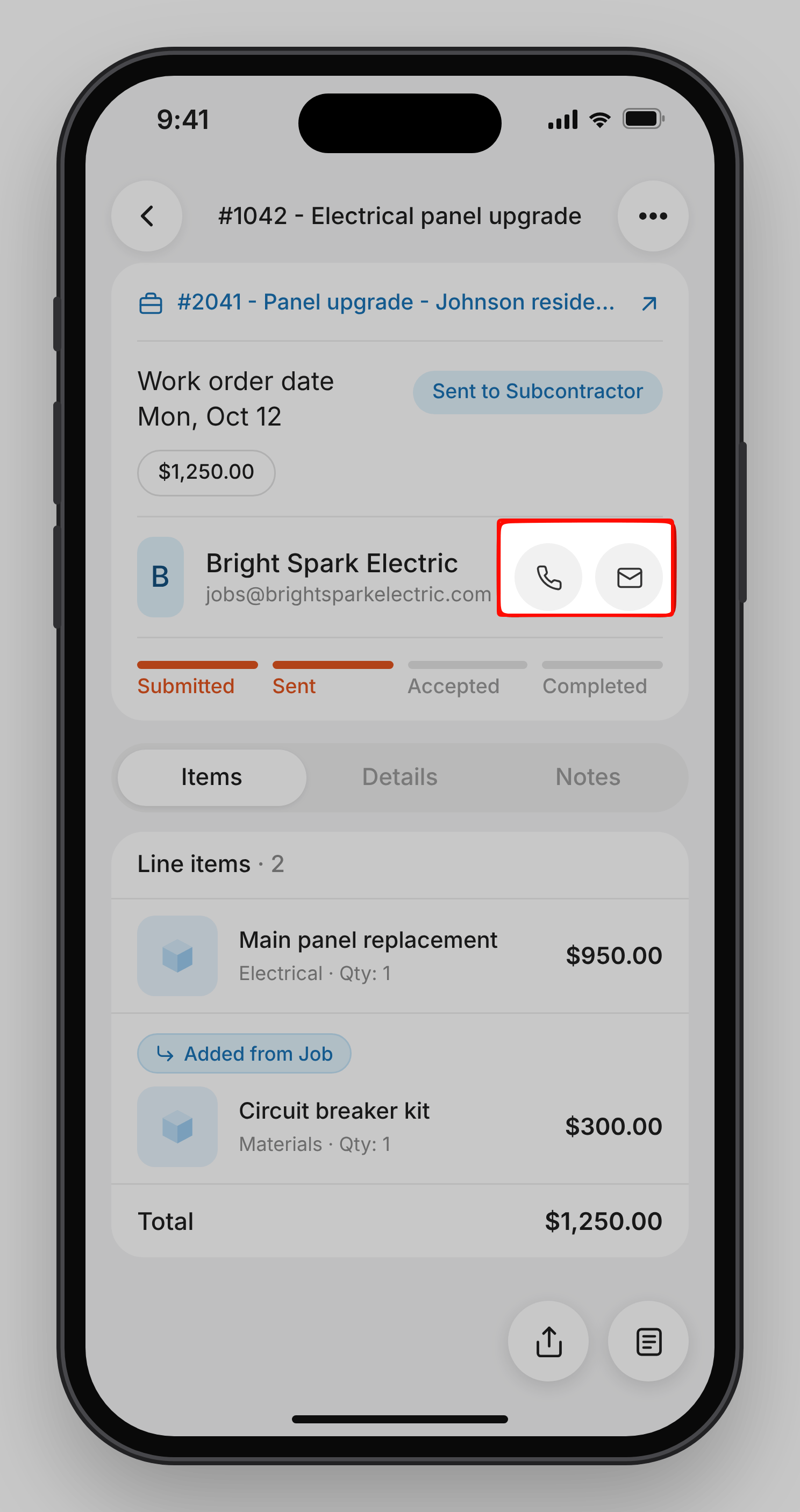
View the items
The Items tab opens by default. It lists the work order’s line items, quantities, and costs, along with the order total.- Compare the listed items with the work completed on-site.
- Items labeled Added from Job were carried over from the associated job.
- Tap an item to view its details.
View work order details and attachments
The Details tab provides the work order information you need on site, including the service address, job site photos, remarks, and attachments. You can view attachments uploaded by your team and subcontractors, filter them by uploader, or add files from your device.
To add an attachment, such as a photo of the completed work, tap the (+) icon in the Attachments section. You can take a photo or video, or select a file from your device.
Tip: To view all attachments, tap Attachments. To view only files uploaded by the subcontractor through the public work order link, tap the filter icon and select Uploaded by Subcontractor.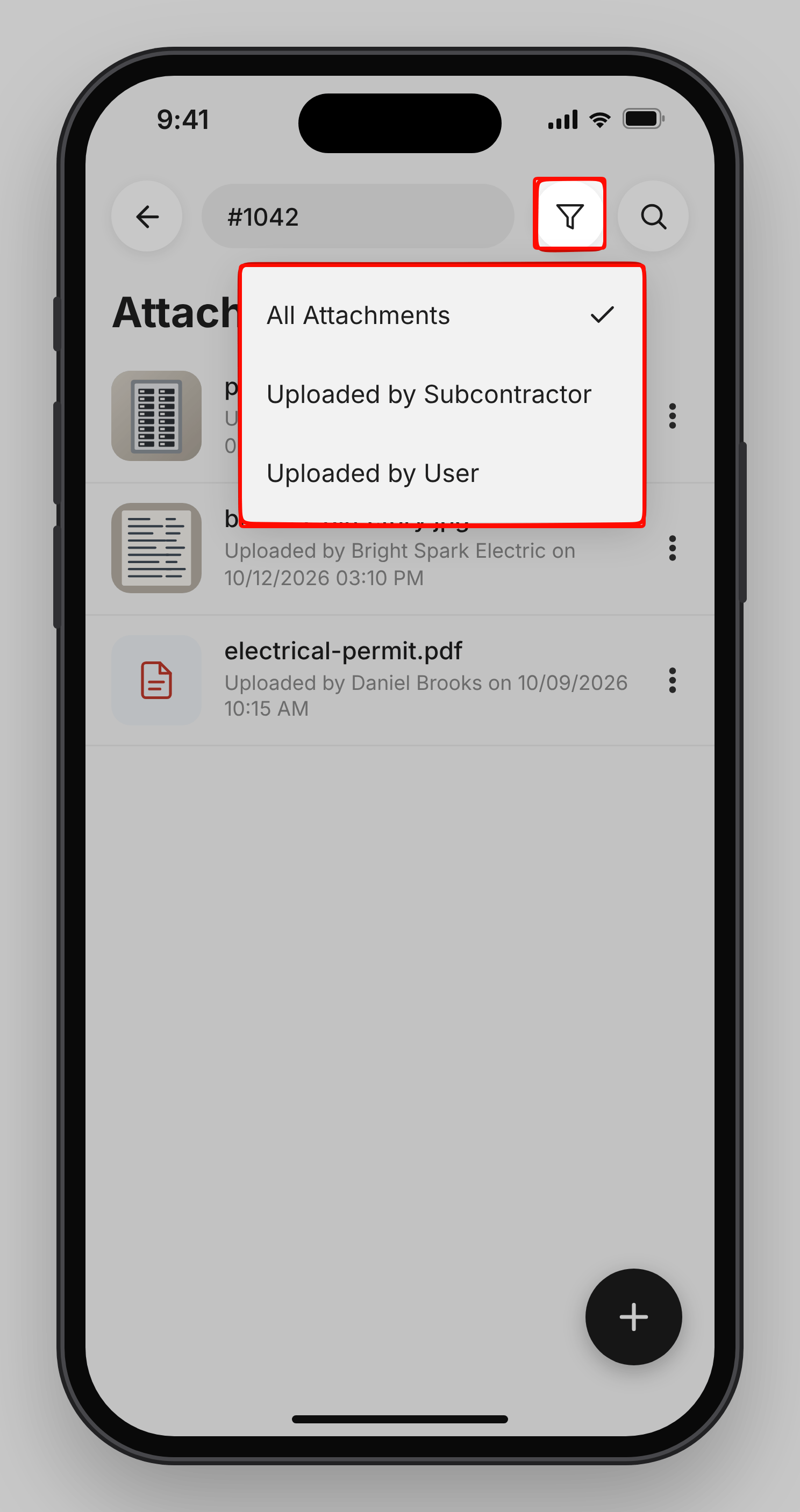
View notes
The Notes tab shows the conversation around the work order.- Select This Order to view notes added to the work order only.
- Select Related Notes to also view notes and activity from the linked job and quote.
Mark a work order as completed
When the subcontractor finishes the work and you’ve checked it, mark the work order as completed. The Mark as completed button appears when the status is Subcontractor Accepted.If Automatically Send WO to Subcontractor after Approval? is turned off in your Purchasing settings, the Mark as completed button also appears when the status is Sent to Subcontractor. You don’t need to wait for the subcontractor to accept the work order.
- Open the work order.
- Tap Mark as completed at the bottom of the screen.
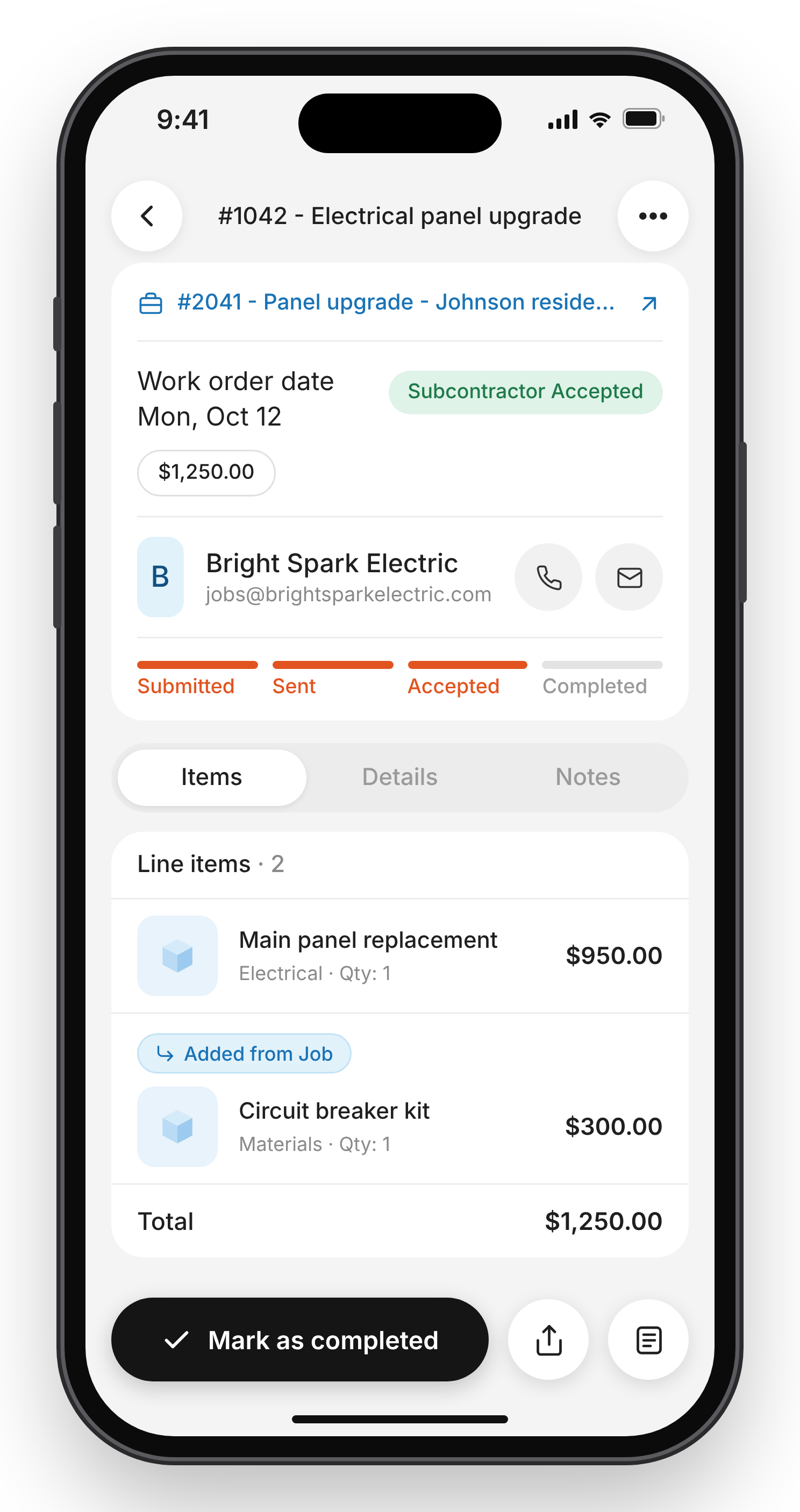
Important: After a work order is marked as Work Completed, its status can’t be changed from the mobile app or the public work order link. Verify the work before you complete it.
Share a work order
- Open the work order.
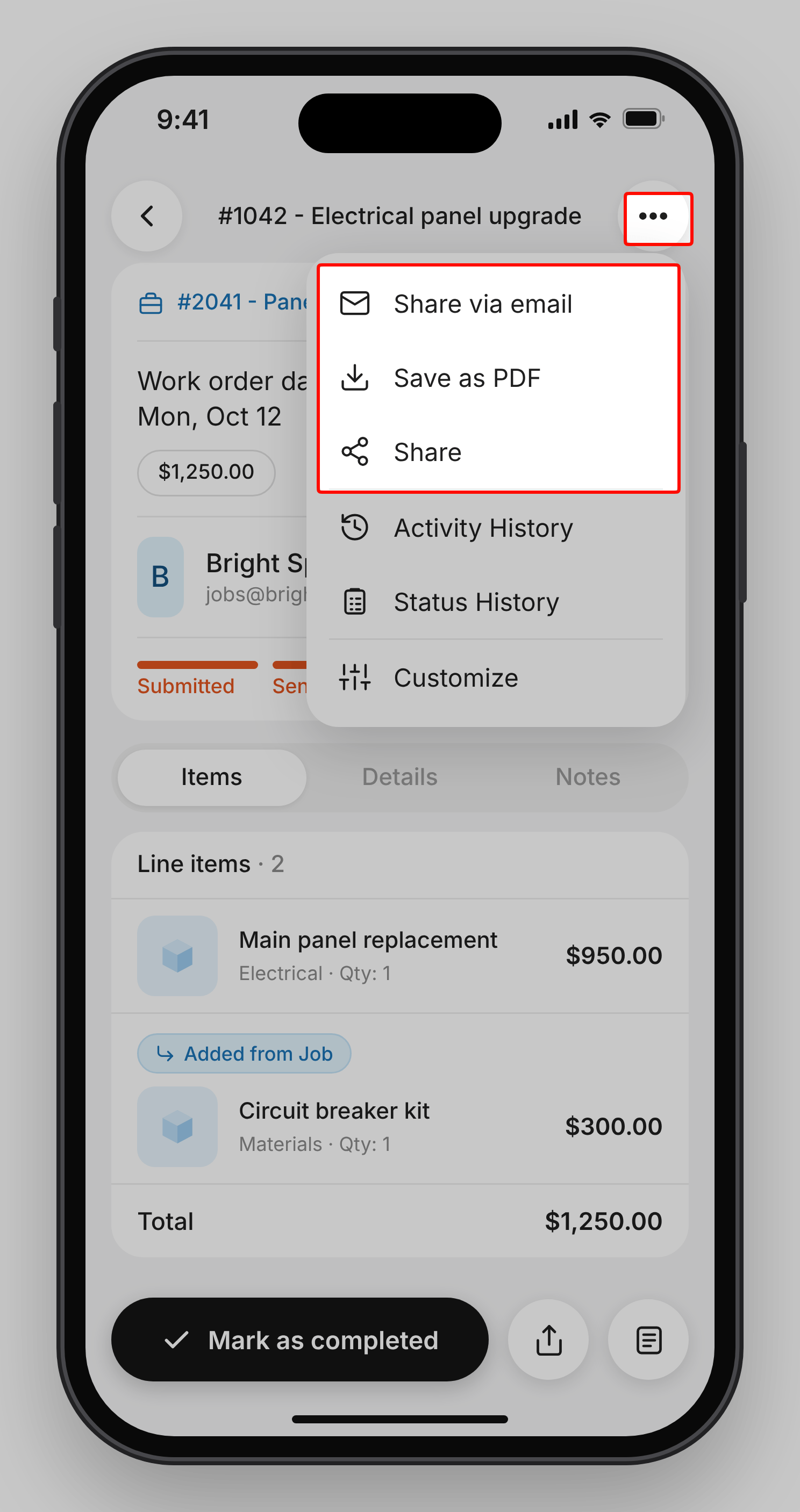
- Tap the More options icon (three dots) in the top-right corner, or tap the Share icon in the bottom-right corner to access the email and PDF options.
- Select one of the following options:
- Share via email: Sends the work order by email.
Note: When the work order’s status is Sent to Subcontractor, the email includes a public work order link that allows the subcontractor to review and respond to the work order.
- Save as PDF: Saves the work order as a PDF using your work order template.
- Share: Opens your device’s sharing options so you can send the public URL through another app, such as a messaging app or social media apps.
- Share via email: Sends the work order by email.
View work order history
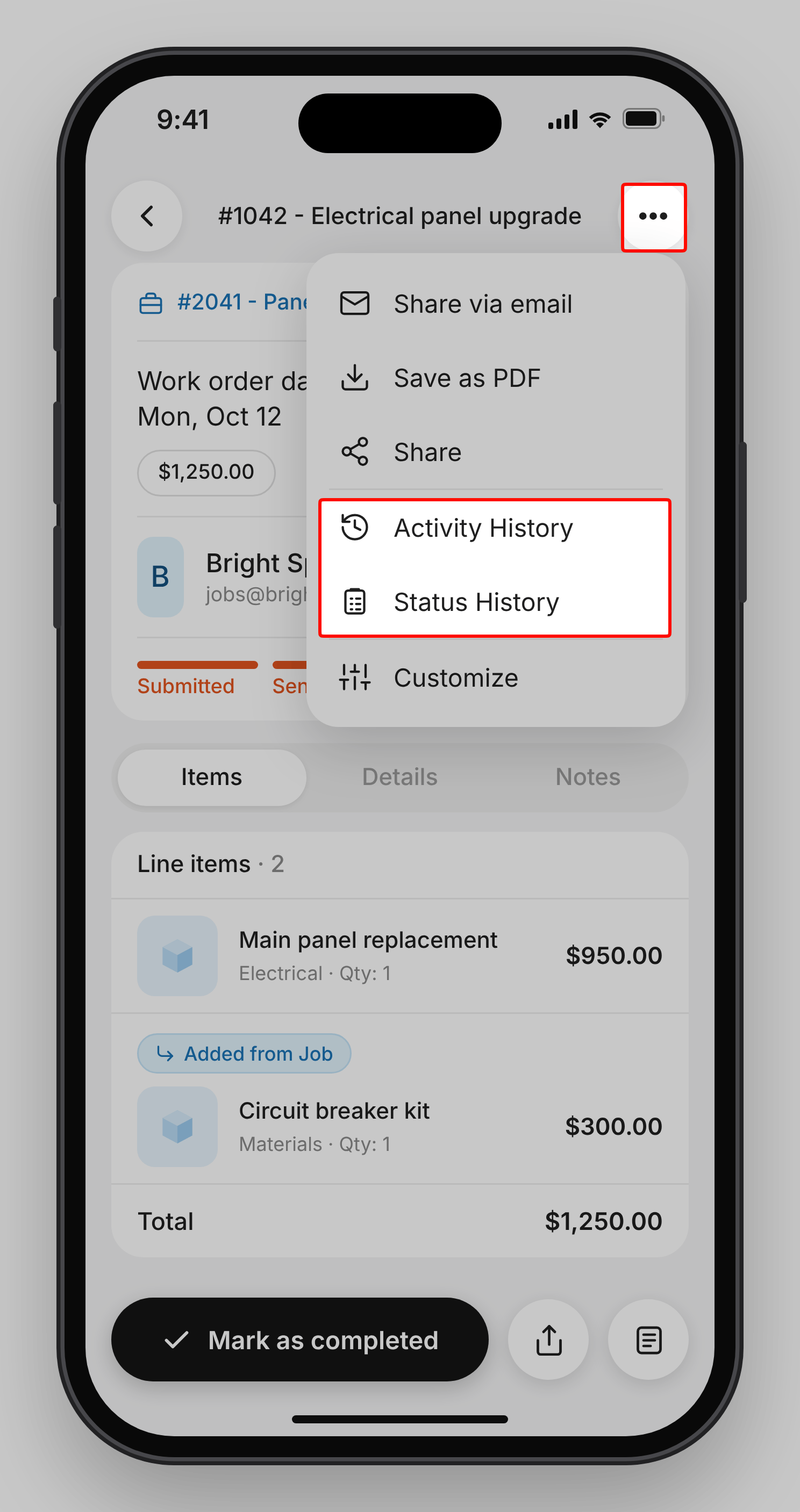
Use the More options menu to review status changes and activity associated with a work order.- Status History: View status changes, including the date, the user who made each change, and any remarks. The PDF sent to the subcontractor is attached to the Sent to Subcontractor entry, so you can download the copy that was sent.
- Activity History: Review changes made to the work order.
- Open the work order.
- Tap the More options icon (three dots).
- Select Status History or Activity History.
Customize the work order screen
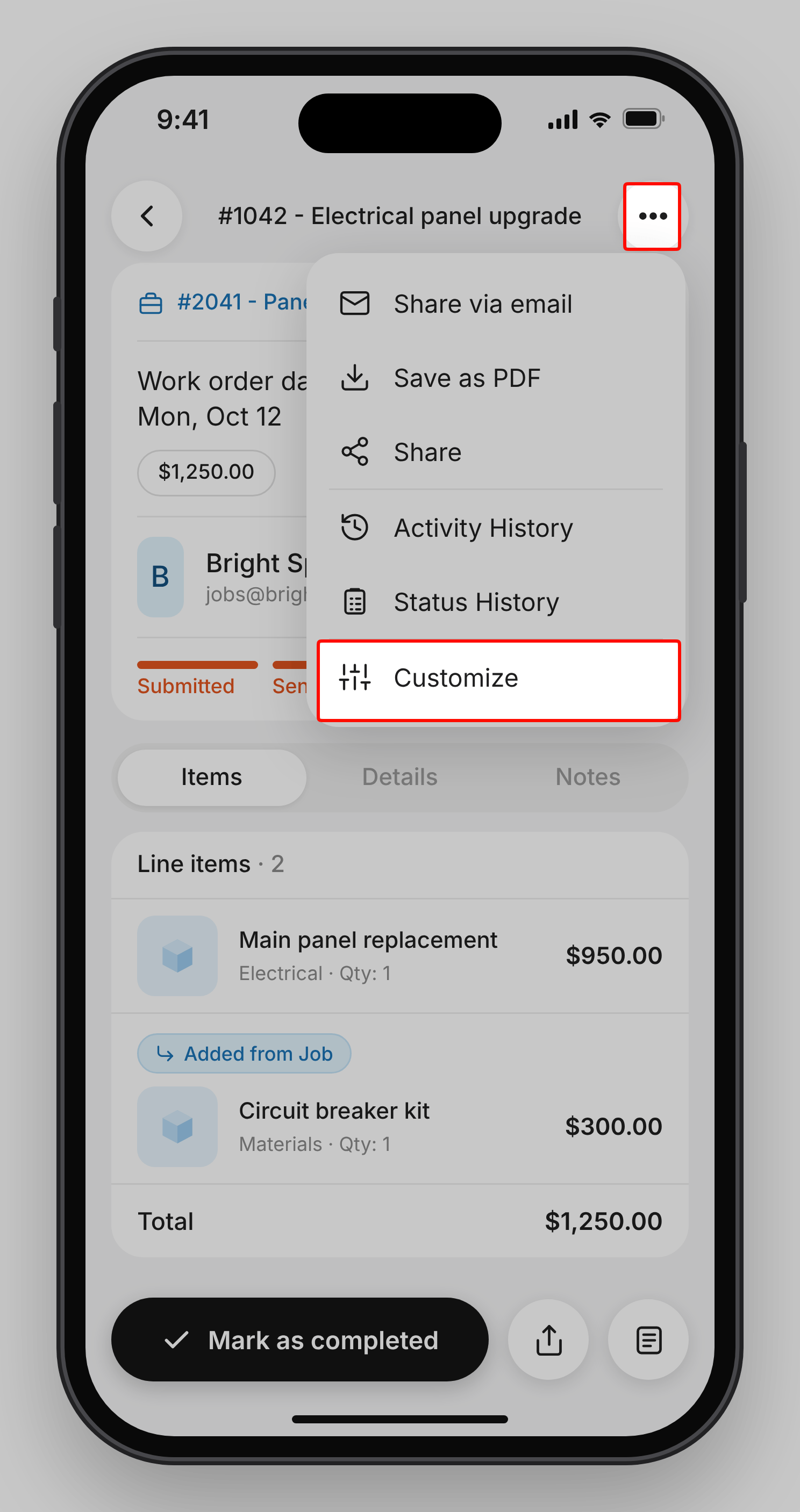
Customize the work order details screen to show or hide the information you need.- Open the work order.
- Tap the More options (⋯) icon in the top-right corner, then select Customize.
- Turn on the options for the information you want to display, or turn them off to hide it.
- Tap the checkmark icon to save your changes.
Frequently asked questions
I marked a work order as completed by mistake. Can I undo it?
I marked a work order as completed by mistake. Can I undo it?
No. After a work order is marked as Work Completed, its status can’t be changed from the app or the public work order link.
Can I create or edit a work order from the mobile app?
Can I create or edit a work order from the mobile app?
No. Create and edit work orders, and add, edit, or delete items, from the Zuper web app.
Where can I find the PDF that was sent to the subcontractor?
Where can I find the PDF that was sent to the subcontractor?
Open Status History from the More options menu. The PDF is attached to the Sent to Subcontractor entry.
When you select Share via email, the email opens with the subcontractor as the recipient and the subject and message already filled in. You can add more recipients, edit the subject and message, and tap Aa to format the text.At the bottom of the email, choose what to include: Measurements, Job photos, Parts/Products, and Send as PDF. All options are selected by default, so clear any you don’t want to send. When you’re ready, tap the Send icon in the top-right corner.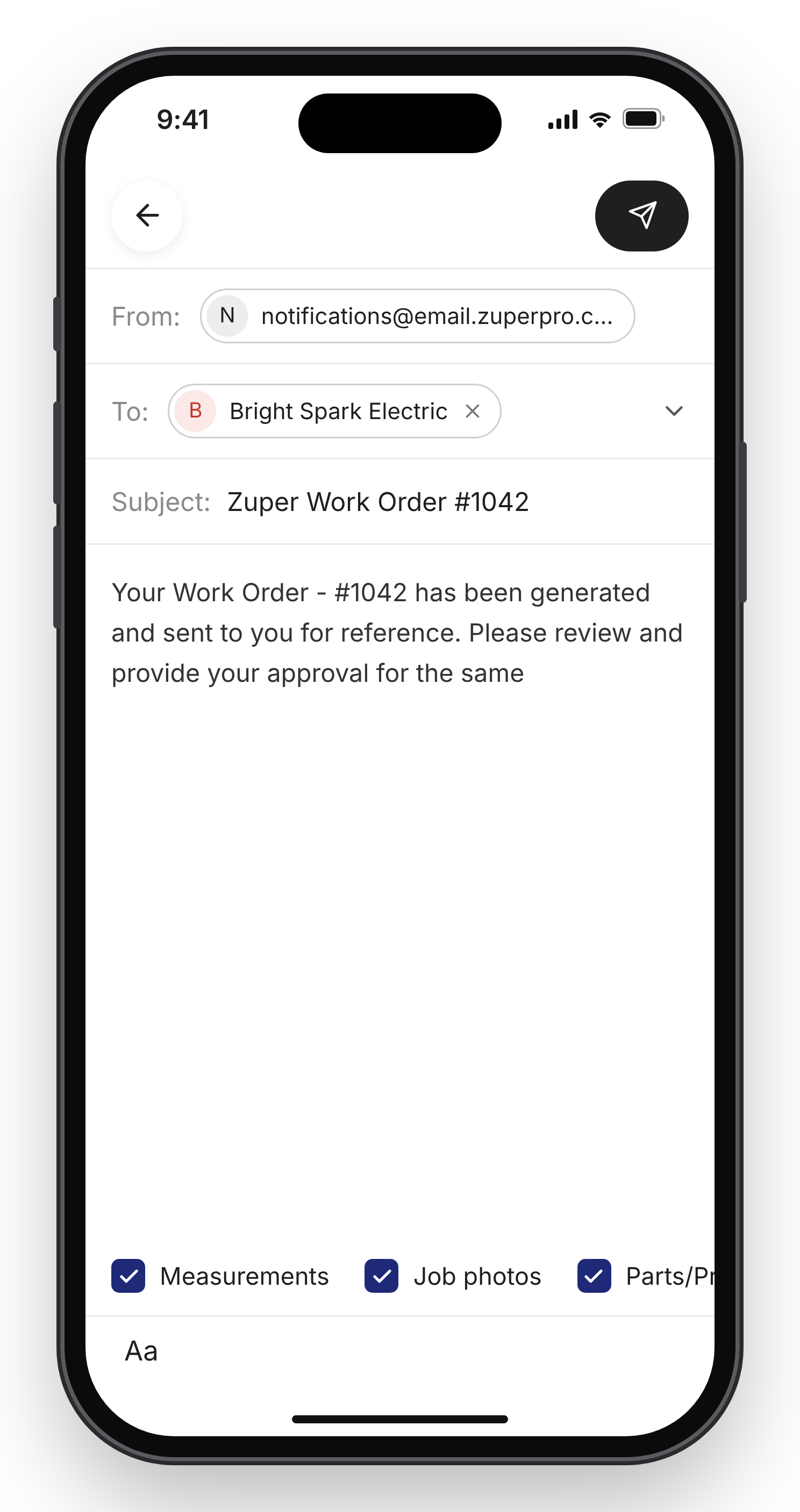
What does Added from Job mean on an item?
What does Added from Job mean on an item?
The item was carried over from the job that the work order is linked to.
Where do I find work orders on a job or quote?
Where do I find work orders on a job or quote?
On a job, they’re on the Overview tab. On a quote, they’re on the Associations tab.